
Forum › Forums › New users › New Users and General Questions › Absolute Beginner
Tagged: screen size
- This topic has 8 replies, 5 voices, and was last updated Apr 17-11:15 am by caprea.
-
AuthorPosts
-
April 13, 2022 at 9:49 pm #81251
 Peter LinuMember
Hiyall,
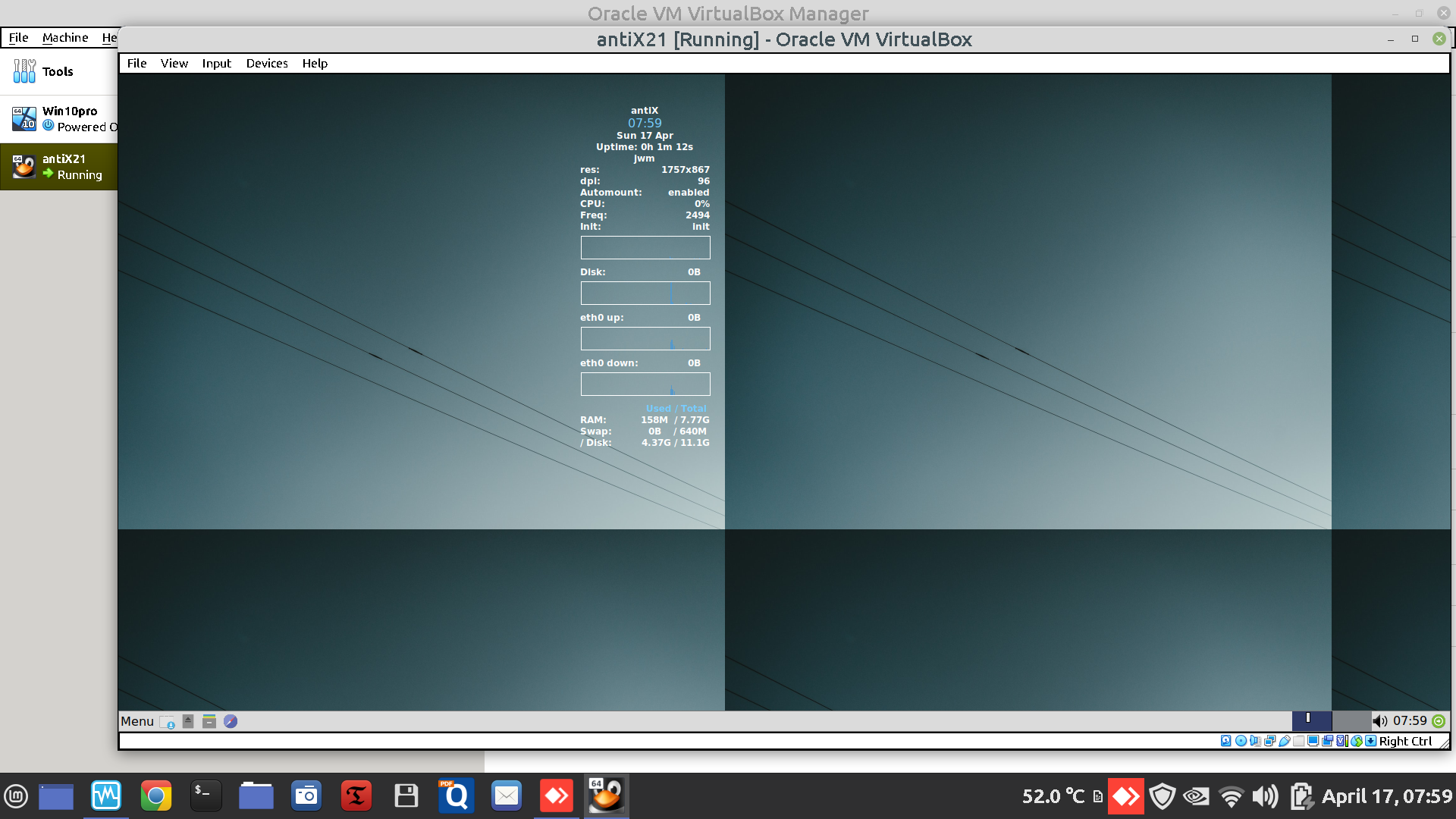
I have just installed antiX21 – 64bit inside Oracle VirtualBox. The attached screenshot shows how small the antiX screen is. How do I make it fill the screen?Attachments:
April 13, 2022 at 10:44 pm #81256 rokytnjiForum Admin
I don’t virtual box so take my link suggestion with a grain of salt. My impression guest additions needs to be installed. Wait for other members who know more than I to respond. Howdy and Welcome.
Sometimes I drive a crooked road to get my mind straight.
I don't suffer from insanity. I enjoy every minute of it.
Motorcycle racing is rocket science.Linux Registered User # 475019
How to Search for AntiX solutions to your problemsApril 14, 2022 at 6:58 am #81276 punrangerMember
This works for me: Go to view menu in VBox, choose “Scaled Mode”.
antiX linux: The best way to revive an old computer - http://www.youtube.com/watch?v=JCTaUAP6sSg
April 16, 2022 at 10:08 pm #81530Peter LinuMemberA very knowledgeable friend helped me set up Guest Additions.
The attached screenshot doesn’t make me confident.
How do I change it to a normal desktop?Attachments:
April 16, 2022 at 10:24 pm #81532PPC
MemberOne of the fastest ways to get the desktop to adjust to a new resolution: Log off and log back on
April 17, 2022 at 1:21 am #81549Peter LinuMemberOK. That’s now fixed. Thanks.
How do I:
1. Make the panel much taller? and populate it?
2. Change the browser to Sea Monkey?
3. Get back the VirtualBox panel at the bottom?April 17, 2022 at 1:24 am #81550Peter LinuMember3. Fixed
April 17, 2022 at 8:39 am #81568MemberHi again Peter – we here in “antiXiland” don’t use the RTFM way of doing things, but there are a couple of posts that should help you figure basic antiX stuff out:
http://www.antixforum.com/forums/topic/short-essential-how-to-list-for-the-complete-linux-newbie/#post-37202 and http://www.antixforum.com/forums/topic/how-to-install-applications-2020-version/#post-32908
Take a read at them and they should answer most of the questions you currently have and may have in the future…
1. If by “populate the panel” you mean adding more quick launch icons to the toolbar: read point 6 in http://www.antixforum.com/forums/topic/short-essential-how-to-list-for-the-complete-linux-newbie/#post-37485
I don’t think changing icewm’s toolbar height is covered on that sticky thread so here you are:
antiX Menu > Control Center > … IceWM … > “Preferences” tab > Search for the line:
TitleBarHeight=32 # [0-128]
Switch the value from 32 to any number of pixels up to 128 Save the changes > Restart your session
Sorry – I initially pointed you to the wrong line: Look for, and change this line (set the value from 0 to 1):
TaskBarDoubleHeight=0 # 0/1
Then save the changes and restart your session…2. To change any program used in the default categories ( File Manager, Web Browser, Text editor, Media Player, etc):
Adapt the procedure indicated in the second paragraph of point 2 in http://www.antixforum.com/forums/topic/short-essential-how-to-list-for-the-complete-linux-newbie/#post-37202PS: I see your main system is Mint – to make antiX look more familiar: install the package ft10-transformation then antiX menu > Applications > Preferences > FT10 – enable…
You get a preconfigured tint2 toobar with a menu button that launches a preconfigured jgmenu – to add icons to the toolbar – left click the +/- icon. To edit the toolbar (and jgmenu features linked to the toolbar- like color and fonts): right click the +/- icon and choose your option – you can control FT10’s toolbar size (in pixels) from there, and many other options, all using GUI’s, no need to edit config files…P.
- This reply was modified 4 years, 5 months ago by PPC.
- This reply was modified 4 years, 5 months ago by PPC.
- This reply was modified 4 years, 5 months ago by PPC.
April 17, 2022 at 11:15 am #81587 capreaModerator
1. Make the panel much taller? and populate it?
There’s another way to do this easily. Go to
menu > Settings > Preferences > Taskbar
There are all the possibilities you can change for the taskbar in alphabetic order, also TaskBarDoubleHeight
checkmark it and afterwards go to
menu > Settings > Preferences > Save Changes
This is mentioned here because this way to change preferences sure worse a look anyway.You can also choose another theme with a taller taskbar
menu > Settings > Themes
Look for the antiX medium, large and huge one for exampleBest way to install Seamonkey is the control-centre > software > Package Installer > Browsers
which also is an important part for installing software. -
AuthorPosts

- You must be logged in to reply to this topic.