
Forum › Forums › New users › Welcome to antiX › grateful to the creators of this distro; need screen brightness help
- This topic has 26 replies, 14 voices, and was last updated Sep 29-3:10 am by anticapitalX.
-
AuthorPosts
-
September 25, 2025 at 5:19 pm #186036
razbone
MemberI’m using Google Translate because my native language is Brazilian Portuguese
I had a little difficulty registering on the forum because I didn’t receive an email from the forum to complete the registration, but marcelocripe helped me until I was able to log into the forum.
For now, my only issue with this system is the brightness (blue light) control app called f.lux.
Of all the apps I’ve used, this one offers the best color for my tired eyes.
Maybe one day a developer will be able to resolve its dependency on antiX and make it an installation option.- This topic was modified 12 months ago by Brian Masinick. Reason: add screen brightness to title
September 25, 2025 at 5:59 pm #186037anti-apXos
MemberFor now, my only issue with this system is the brightness (blue light) control app called f.lux.
Of all the apps I’ve used, this one offers the best color for my tired eyes.
Maybe one day a developer will be able to resolve its dependency on AntiX and make it an installation option.Did you try the screenlight script that comes with antiX? It works very similar to f.lux. You’ll find it in the applications menu under Preferences > Screenlight.
Out of curiousity, I just tested the f.lux binary for linux that’s available here: https://justgetflux.com/linux.html
It worked fine on my antiX 23 based system. Did you extract the binary to a PATH location, like /usr/local/bin, and make sure it was executable?
This f.lux binary does use a slightly different method of lowering screen temperature compared to screenlight/sct. f.lux raises the red gamma, while decreasing the blue, leaving green untouched. screenlight/sct decreases both blue and green, leaving red untouched. In the end, I couldn’t see a difference in the outcome between these methods, but maybe it depends on your eyes, I’m not sure.
If either f.lux or screenlight is not working correctly for you on antiX, it might mean there’s a problem with your graphics drivers. Maybe we can help you with this if you post the output from running this command in a terminal
inxi -Faz"--"
September 25, 2025 at 6:25 pm #186040MemberYes, I tested this native system application, but it doesn’t look good on my eyes.
September 25, 2025 at 6:41 pm #186043 Brian MasinickModerator
For now, my only issue with this system is the brightness (blue light) control app called f.lux.
Of all the apps I’ve used, this one offers the best color for my tired eyes.
Maybe one day a developer will be able to resolve its dependency on AntiX and make it an installation option.Did you try the screenlight script that comes with antiX? It works very similar to f.lux. You’ll find it in the applications menu under Preferences > Screenlight.
Out of curiousity, I just tested the f.lux binary for linux that’s available here: https://justgetflux.com/linux.html
It worked fine on my antiX 23 based system. Did you extract the binary to a PATH location, like /usr/local/bin, and make sure it was executable?
This f.lux binary does use a slightly different method of lowering screen temperature compared to screenlight/sct. f.lux raises the red gamma, while decreasing the blue, leaving green untouched. screenlight/sct decreases both blue and green, leaving red untouched. In the end, I couldn’t see a difference in the outcome between these methods, but maybe it depends on your eyes, I’m not sure.
If either f.lux or screenlight is not working correctly for you on antiX, it might mean there’s a problem with your graphics drivers. Maybe we can help you with this if you post the output from running this command in a terminal
inxi -FazYes, I tested this native system application, but it doesn’t look good on my eyes.
If possible, share the output of inxi -Faz; this may be helpful for someone knowledgeable about video graphics who may be able to provide a useful suggestion to you.
--
Brian Masinick
Alternate "Search B":
This search pageSeptember 25, 2025 at 6:42 pm #186044Memberraz@raz:~
$ inxi -Faz
System:
Kernel: 6.1.105-antix.1-amd64-smp arch: x86_64 bits: 64 compiler: gcc
v: 12.2.0 clocksource: tsc avail: hpet,acpi_pm
parameters: BOOT_IMAGE=/boot/vmlinuz-6.1.105-antix.1-amd64-smp
root=UUID=c2b8ea50-590f-4bf7-adbc-d8293255ea32 ro quiet selinux=0
Desktop: IceWM v: 3.9.0 tools: avail: slock,xlock dm: slimski v: 1.5.0
Distro: antiX-23.2-runit_x64-full Arditi del Popolo 5 October 2024
base: Debian GNU/Linux 12 (bookworm)
Machine:
Type: Desktop Mobo: PCWARE model: IPMH61R3 v: 1.0
serial: <superuser required> uuid: <superuser required>
BIOS: American Megatrends v: 4.6.4 date: 11/14/2011
CPU:
Info: model: Intel Core i5-2310 bits: 64 type: MCP arch: Sandy Bridge
gen: core 2 level: v2 built: 2010-12 process: Intel 32nm family: 6
model-id: 0x2A (42) stepping: 7 microcode: 0x2F
Topology: cpus: 1x dies: 1 clusters: 4 cores: 4 smt: <unsupported> cache:
L1: 256 KiB desc: d-4×32 KiB; i-4×32 KiB L2: 1024 KiB desc: 4×256 KiB
L3: 6 MiB desc: 1×6 MiB
Speed (MHz): avg: 1600 min/max: 1600/2900 scaling: driver: intel_cpufreq
governor: schedutil cores: 1: 1600 2: 1600 3: 1600 4: 1600 bogomips: 23147
Flags: avx ht lm nx pae sse sse2 sse3 sse4_1 sse4_2 ssse3 vmx
Vulnerabilities:
Type: gather_data_sampling status: Not affected
Type: itlb_multihit status: KVM: VMX disabled
Type: l1tf mitigation: PTE Inversion; VMX: conditional cache flushes, SMT
disabled
Type: mds mitigation: Clear CPU buffers; SMT disabled
Type: meltdown mitigation: PTI
Type: mmio_stale_data status: Unknown: No mitigations
Type: reg_file_data_sampling status: Not affected
Type: retbleed status: Not affected
Type: spec_rstack_overflow status: Not affected
Type: spec_store_bypass mitigation: Speculative Store Bypass disabled via
prctl
Type: spectre_v1 mitigation: usercopy/swapgs barriers and __user pointer
sanitization
Type: spectre_v2 mitigation: Retpolines; IBPB: conditional; IBRS_FW;
STIBP: disabled; RSB filling; PBRSB-eIBRS: Not affected; BHI: Not
affected
Type: srbds status: Not affected
Type: tsx_async_abort status: Not affected
Graphics:
Device-1: Intel 2nd Generation Core Processor Family Integrated Graphics
vendor: Elite Systems driver: i915 v: kernel arch: Gen-6 code: Sandybridge
process: Intel 32nm built: 2011 ports: active: VGA-1 empty: none
bus-ID: 00:02.0 chip-ID: 8086:0102 class-ID: 0300
Display: server: X.Org v: 1.21.1.7 driver: X: loaded: modesetting
unloaded: fbdev,vesa dri: crocus gpu: i915 display-ID: :0.0 screens: 1
Screen-1: 0 s-res: 1280×1024 s-dpi: 96 s-size: 338x270mm (13.31×10.63″)
s-diag: 433mm (17.03″)
Monitor-1: VGA-1 model: AOC 712Sa serial: <filter> built: 2008
res: 1280×1024 hz: 75 dpi: 96 gamma: 1.2 size: 340x270mm (13.39×10.63″)
diag: 434mm (17.1″) ratio: 5:4 modes: max: 1280×1024 min: 720×400
API: EGL v: 1.5 hw: drv: intel crocus platforms: device: 0 drv: crocus
device: 1 drv: swrast gbm: drv: crocus surfaceless: drv: crocus x11:
drv: crocus inactive: wayland
API: OpenGL v: 3.3 vendor: intel mesa v: 22.3.6 glx-v: 1.4 es-v: 3.0
direct-render: yes renderer: Mesa Intel HD Graphics 2000 (SNB GT1)
device-ID: 8086:0102 memory: 1.46 GiB unified: yes
Audio:
Device-1: Intel 6 Series/C200 Series Family High Definition Audio
vendor: Elite Systems 6 driver: snd_hda_intel v: kernel bus-ID: 00:1b.0
chip-ID: 8086:1c20 class-ID: 0403
API: ALSA v: k6.1.105-antix.1-amd64-smp status: kernel-api with: apulse
type: pulse-emulator tools: alsactl,alsamixer,amixer
Server-1: PipeWire v: 1.4.2 status: active with: 1: pipewire-pulse
status: active 2: wireplumber status: active 3: pipewire-alsa type: plugin
4: pw-jack type: plugin tools: pw-cat,pw-cli,wpctl
Network:
Device-1: Qualcomm Atheros AR8151 v2.0 Gigabit Ethernet
vendor: Elite Systems driver: atl1c v: kernel pcie: gen: 1 speed: 2.5 GT/s
lanes: 1 port: e000 bus-ID: 02:00.0 chip-ID: 1969:1083 class-ID: 0200
IF: eth0 state: up speed: 1000 Mbps duplex: full mac: <filter>
Info: services: mld,wpa_supplicant
Drives:
Local Storage: total: 298.09 GiB used: 11.07 GiB (3.7%)
SMART Message: Unable to run smartctl. Root privileges required.
ID-1: /dev/sda maj-min: 8:0 vendor: Western Digital
model: WD3200AAKS-00B3A0 size: 298.09 GiB block-size: physical: 512 B
logical: 512 B speed: 3.0 Gb/s tech: N/A serial: <filter> fw-rev: 3A01
scheme: GPT
Partition:
ID-1: / raw-size: 298.09 GiB size: 292.35 GiB (98.07%)
used: 11.07 GiB (3.8%) fs: ext4 dev: /dev/sda2 maj-min: 8:2
Swap:
Kernel: swappiness: 10 (default 60) cache-pressure: 50 (default 100)
zswap: no
ID-1: swap-1 type: file size: 2 GiB used: 524 KiB (0.0%) priority: -2
file: /swap/swap
Sensors:
System Temperatures: cpu: 36.0 C mobo: N/A
Fan Speeds (rpm): N/A
Info:
Memory: total: 6 GiB note: est. available: 5.64 GiB used: 2.8 GiB (49.6%)
Processes: 155 Power: uptime: 5h 14m states: freeze,mem,disk suspend: deep
avail: s2idle wakeups: 0 hibernate: platform avail: shutdown, reboot,
suspend, test_resume image: 2.23 GiB Init: runit v: N/A runlevel: 2
tool: service
Packages: pm: dpkg pkgs: 1684 libs: 789
tools: apt,apt-get,aptitude,synaptic Compilers: gcc: 12.2.0 Shell: Bash
v: 5.2.15 running-in: roxterm inxi: 3.3.36September 25, 2025 at 7:12 pm #186047BobC
ModeratorIf you install and try the f.lux program and it works from a terminal, you could add it to the menu or toolbar, or possibly add it to a startup script so it runs automatically.
Here is the link to SEARCH THE FORUM >> http://www.antixforum.com/search-forums
September 25, 2025 at 7:46 pm #186051MemberThere is a launcher called fluxgui and I even tried to install it, but it has a dependency that I, with my limited knowledge, was unable to solve.
September 25, 2025 at 8:13 pm #186053PDP-8
MemberHi razbone, welcome aboard!
In the meantime, how about this commandline quickie? I use this technique a lot, and it’s quite fun. We’ll use the xrandr command.
1) Find out what your active monitor is known as. What we’re looking for are things that are connected such as HDMI-1, DP-2 or whatever:
xrandr --listactivemonitors2) Now that we know, lets set up a command for a default setting where everything for brightness and color is 1. I call it “day” when I make a script out of it (later). My system found that the connected screen is known as HDMI-1. Yours may be different.
xrandr --output HDMI-1 --brightness 1.0 --gamma 1.0:1.0:1.0(BEWARE of the dash! Easy to forget. Ie, some systems might report HDMI-1, whereas on others it has no dash HDMI1. Important if you use antiX portable, and may need to slightly tweak your shell script…)
3)For tired eyes, or perhaps night-time use, well drop the brightness, and also tweak the color a little bit to match. We don’t want to get psychedelic so there is a formula for the numbers. Be careful with your periods and colons! But for now:
xrandr --output HDMI-1 --brightness 0.65 --gamma 1.0:0.93:0.81You can make small adjustments to brightness, perhaps a bit brighter using 0.7. Or perhaps even a tad less bright by using 0.6. You get the idea. The last two color variables, 0.93 and 0.81 can likewise be tweaked. But leave the first 1.0 variable for gamma as it is.
Shell script: I don’t want to remember this all the time, so I make a shell script in my user directory. For my “day” script, I use this:
#!/bin/sh
xrandr --output HDMI-1 --brightness 1.0 --gamma 1.0:1.0:1.0
I save this file as “day”. But I want to make it executable!
chmod +x dayNow I can run it from the commandline by preceding it with a dot-slash
./dayDo the same thing for the “night” shell script with its differing brightness and color variables.
The cool thing here is that no matter what system you run, you can give tired eyes a break! 🙂
- This reply was modified 12 months ago by PDP-8.
- This reply was modified 12 months ago by PDP-8. Reason: Added dash reminder
September 25, 2025 at 11:06 pm #186060MemberIf you can live without the GUI for f.lux, which does have a lot of dependencies (even if many are already installed on antiX), I’d suggest just trying the plain command-line binary directly from the f.lux website: https://justgetflux.com/linux.html It’s the download labeled “xflux64.tgz” and it has no dependencies aside from Xorg, which you’re already running.
While there are lots of reports of issues with that binary, it works fine for me on antiX 23, with both an antiX kernel (6.6.62) and one from Debian Bookworm backports (6.12.38). It’s very easy to use. Just a single line with your latitude and longitude and a desired nighttime color temperature.
xflux -l 40 -g -110 -k 320040 and -110 are my lat-long coordinates. You’d fill in your own, based on your location. If that’s working, then as @BobC said, you can just add the line to your startup session script (~/.desktop-session/startup) so it will always be started when you boot the system.
However, I think that no matter how closely I look, the result from f.lux is identical to screenlight, so if you don’t like the way screenlight looks, I don’t think you’ll like f.lux either. One thing that’s nicer, though, is that f.lux gradually changes the color temperature over about a minute instead of just suddenly switching it.
Maybe try the method @PDP-8 suggested since it’s definitely different, though to me it looks worse than the way f.lux or sct do it.
"--"
September 25, 2025 at 11:17 pm #186062ModeratorIf you get PDP-8’s solutions to work from a Terminal, you can then add them to your toolbar. You could also add it to the menus if you created desktop files for each.
Or if you wanted to get fancy with it, and you could decide what time relative to sunrise and sunset you wanted it to change, you could even automate the process so that when the system boots it switches to the correct day or night setting, and after that it automatically switches again at the correct times relative to each sunrise or sunset. That would take some fancy script programming.
PS: If @anti-apxos’s solution works, it sounds like it would take less effort.
- This reply was modified 12 months ago by BobC.
Here is the link to SEARCH THE FORUM >> http://www.antixforum.com/search-forums
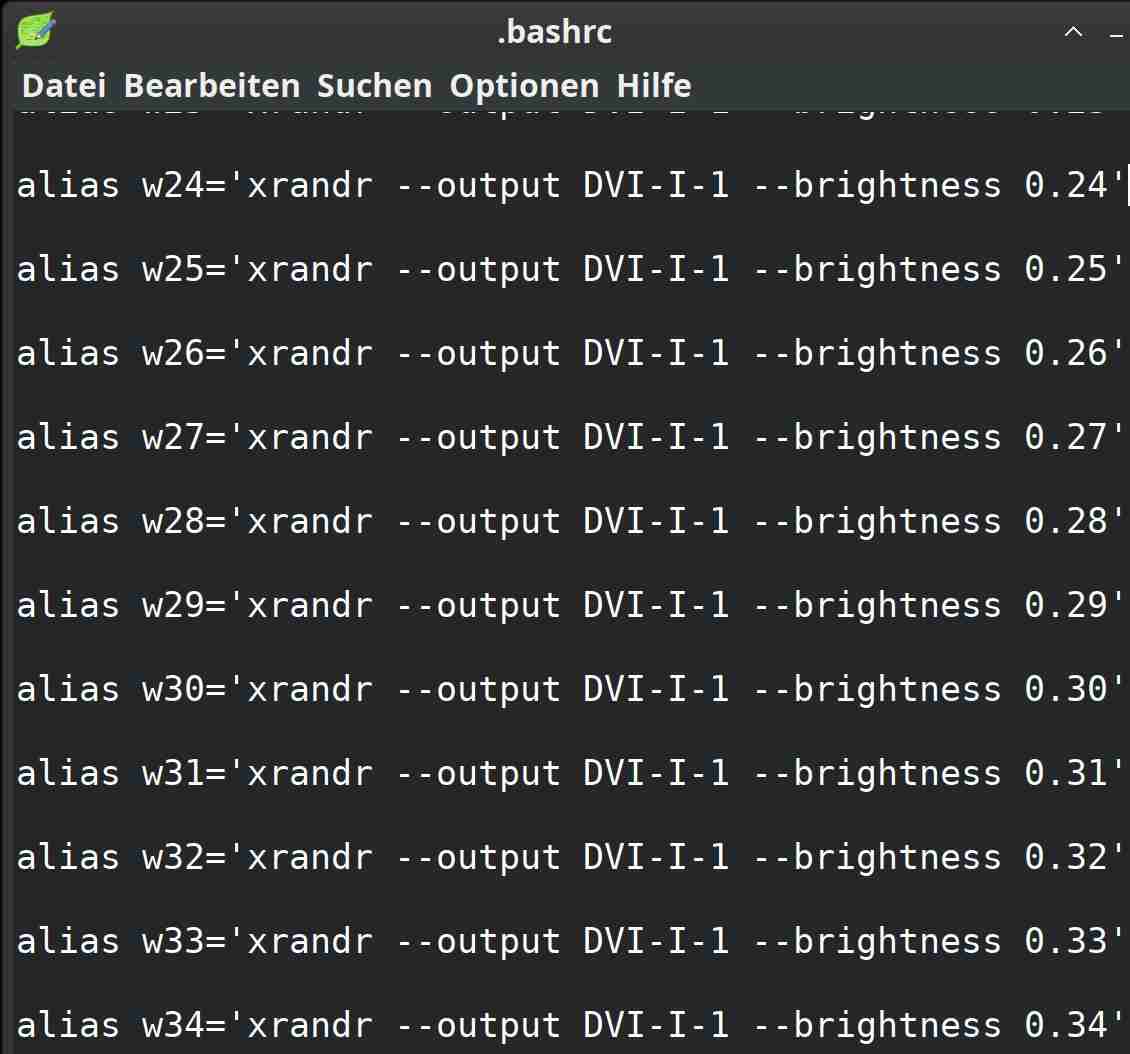
September 26, 2025 at 6:24 am #186071MemberI created aliases for both examples in $HOME/.bashrc
so I can see which one I’m most comfortable with.
grateful for the time and knowledge sharedSeptember 26, 2025 at 6:44 am #186072 sybokMember
You could also install ‘redshift’ [https://github.com/jonls/redshift] directly from the Debian repositories.
Local configuration file ‘~/.config/redshift.conf’:
[redshift]
temp-day=4750
temp-night=2750
gamma=0.8
adjustment-method=vidmode
location-provider=manual
[manual]
lat=<float: latitude>
lon=<float: longitude>
Setting ‘location-provider’ to ‘manual’ may reduce use of geoclue library (some may|do consider a cause for privacy concerns).
The only downside is that the latest release is from 2018 which may indicate stalled development (or all work is actually done reasonably well and only maintenance is going on).
September 26, 2025 at 1:02 pm #186099032_hsn
Member@razbone
Schreibe dir Deutsch, weil es nur für dich bestimmt ist und du mußt ohnehin die Übersetzung anwenden. Wenn, anworte mir wie du willst, portugiesich oder englisch, mir egal.Du wirst allmählig in die Irre geführt.
1) delix02 → er spricht von Display-Auflösung, du brauchst aber die Display-Helligkeit mit Farben, um die Schärfe des blauen Lichts zu dimmen,
2) ‘screenlight’ eignet sich für die Notebooks, du hast aber einen Desktop (PC),
3) ‘redschift’ eignet sich nicht, überhaupt NICHT, für deine Zwecke,
4) das Skript von PDP-8 kann wegen seiner Komplexität nicht FEIN eingestellt werden. Er benutzt bei sich nur eine grobe Einstellung, Tag → Nacht, deine Augen brauchen jedoch, wie gesagt, eine präzise, feine, Einstellung. Dabei muß man einbeziehen, man stellt noch den Browser ein (Heliggkeit, Farbe). Zusammen ist es kaum nutzbar,
5) das letzte Tool, was du erwähnst, hast du selber benutzt und es eignet sich nicht optimal.Die Lösung, die meine kranken Augen mit Erfolg seit Jahren zufrieden stellt:
1) das Tool ‘xsct’ installieren. Damit Aliase in der ‘.bashrc’ bilden. Die Beispiele von mir schicke ich dir hier in der Anlage. → Benutze ich in der Nacht, oder wenn meine Augen extrem müde sind usw.,
2) ‘xrandr’ ist schon im System, klar. Damit wiederum die Aliase in der ‘.bashrc’ abspeichern. Die Beispiele findest du gleichfalls in der Anlage. → Benutze ich, wenn es im Zimmer viel Licht, Sonnenlicht usw. gibt.
Gruß!!
Attachments:
September 26, 2025 at 5:24 pm #186116fanantix
Member@BobC
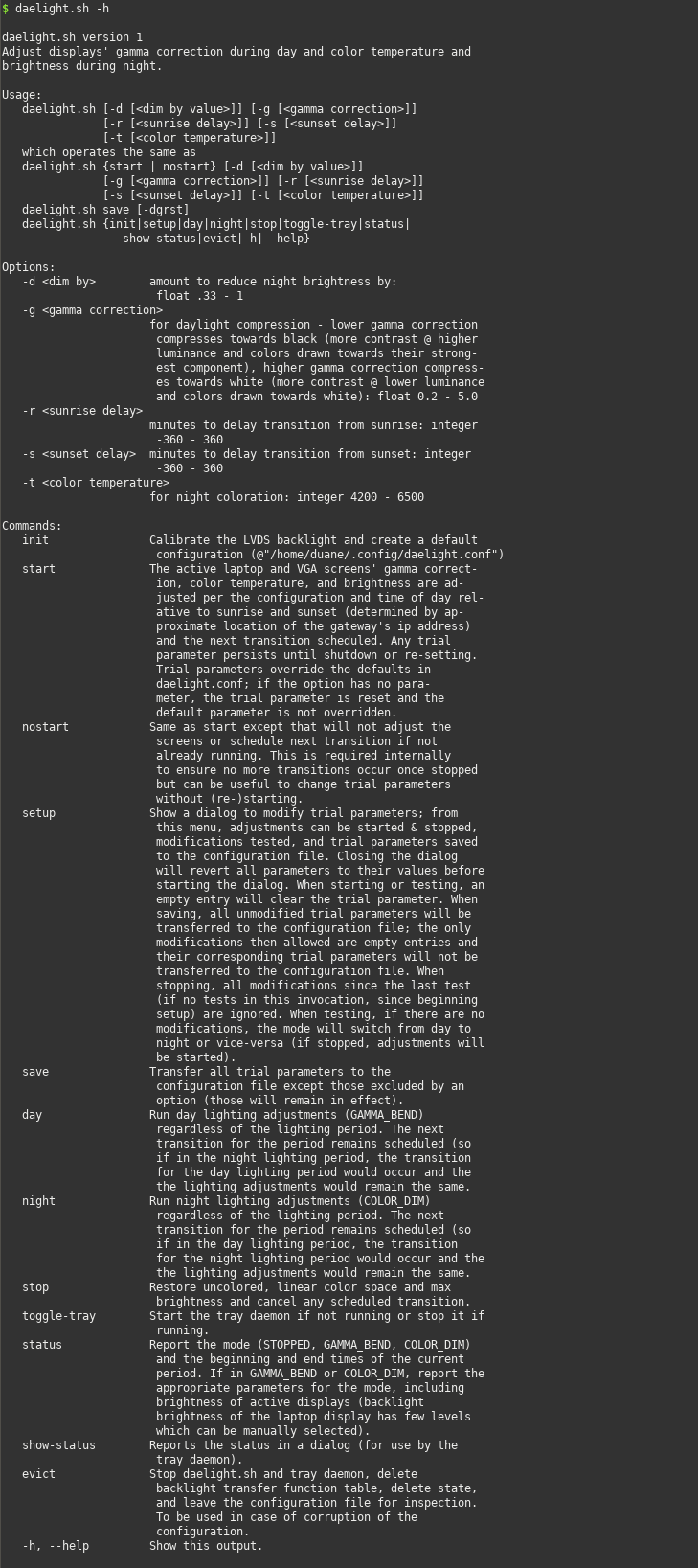
I went overboard on such a script (my first major script). It uses YAD to allow you to adjust gamma correction for the daylight mode and color temperature and dimming for the nighttime mode. Here’s the dialog for setting the parameters (hope I linked the attachment properly):

The script allows all parameters to be set from the command line as well.
I was beat by the time I got the script adequately debugged so it has some inconsistent documentation and commentary. I was waiting to publish until I had the energy to clean that up.
I am using, as a smart terminal, antiX 22 on a T42 because Mesa in subsequent releases does not support its Radeon Mobility GPU.
- This reply was modified 12 months ago by fanantix. Reason: Adjust readability
- This reply was modified 12 months ago by fanantix.
- This reply was modified 12 months ago by fanantix.
Attachments:
September 26, 2025 at 8:00 pm #186123MemberThose are some awesome solutions! It begs the question if something like xsct / sct (or redshift or others) should be part of the distribution itself as a backup in case the light-slider or brightness utils fail to work on specific hardware.
The reason for that is that not everyone or every machine has internet access to reach a repo for install, and must use antiX “as is”. Presumably given to by a fortunate friend. Hard to imagine right? 🙂
With antiX superbly supporting low-end machines, or discards, I can see where a laptop might never reach the internet, but it used for something other than mass-media consumption, like reading text, PDF’s, ebooks, stuff like that. Or doing shell-scripting, learning languages etc. If one is lucky, they have their “other” internet connected machines, but some may not be that fortunate.
Some of my own solutions are based on that “desert island” with no internet connection mindset. 🙂
-
AuthorPosts


- You must be logged in to reply to this topic.