
Forum › Forums › General › Tips and Tricks › Short essential how-to list for the complete Linux newbie
Tagged: AntiX, beginner, briefing, compendium, howto, Instructions, learner, newcomer
- This topic has 108 replies, 44 voices, and was last updated Sep 5-6:04 pm by Robin.
-
AuthorPosts
-
December 3, 2020 at 8:00 pm #46465
 userzeroMember
I am not familiar with rox-filer or ICEwm, hope not to disturb.
For rox-filer,
Change leafpad, xmms to xed, deadbeef … If you make any changes re-create the symlinks in [~/.config/rox.sourceforge.net/SendTo] … Notice that the directories are hidden …
> _ ln -sT ~ /.local/share/applications/xed.desktop Open\ with\ xed
> _ ln -sT /usr/share/applications/deadbeef.desktop Open\ with\ deadbeef> _ ls -la .audio_flac /
lrwxrwxrwx 1 user user 40 Dec 2 14:45 ‘Open with deadbeef’ -> /usr/share/applications/deadbeef.desktop> _ ls -la .text_x-log /
lrwxrwxrwx 1 user user 50 Dec 2 14:39 ‘Open with xed’ -> /home/user/.local/share/applications/xed.desktopDecember 3, 2020 at 8:19 pm #46468userzeroMemberCredits to @damo, Display the keybinds (~/.icewm/keys).
Create a file ~/bin/tiling-kbinds.txtexample,
key "Ctrl+Shift+KP_Left" wingrid-left.sh # Left-Move window to Left
key "Ctrl+Shift+KP_Right" wingrid-right.sh # Right-Move window to Right
key "Ctrl+Shift+KP_Up" wingrid-top.sh # Up-Move window Top
key "Ctrl+Shift+KP_Down" wingrid-bottom.sh # Down-Move window to Bottom
key "Ctrl+Shift+KP_Home" wingrid-topleft.sh # Home-Move window to Top Left
key "Ctrl+Shift+KP_Prior" wingrid-topright.sh # PgUp-Move window Top Right
key "Ctrl+Shift+KP_End" wingrid-bottomleft.sh # End-Move window to Bottom Left
key "Ctrl+Shift+KP_Next" wingrid-bottomright.sh # PgDn-Move window to Bottom Right
key "Ctrl+Shift+KP_Insert" wingrid-maximize.sh # 0-Maximize window
key "Ctrl+Shift+KP_Begin" wingrid-center.sh # 5-Center window
key "Ctrl+Shift+KP_Delete" wingrid-close.sh # .-Close window
Create another file ~/bin/tiling-kbinds.sh,
#!/bin/bash
##
## tiling-kbinds.sh  by damo, August 2017
##

KBINDS="$HOME/bin/tiling-kbinds.txt"

ERROR_MSG1="$KBINDS does not exist"
ERROR_MSG2="This script requires 'yad' to be installed"

[[ -f $KBINDS ]] 2>/dev/null || { notify-send "$ERROR_MSG1" >&2;exit 1;}

if type yad &>/dev/null;then
    yad --text-info --filename="$KBINDS" --width=580 --height=750 --undecorated \
    --no-buttons --margins=20 --borders=0
else
    notify-send "$ERROR_MSG2" >&2
    exit 1
fi
Add to ~/.icewm/keys
key "Super+r" icewm --restart
key "Super+F1" /home/user/bin/tiling-kbinds.sh
Saludos.
December 4, 2020 at 5:21 pm #46513Anonymous
Is there an easier way to connect to network attached drives? The method described by DO in an older video is time consuming and it always takes me several tries to get it work. This is the main thing that I don’t like about AnTix. Thanks.
JeffDecember 5, 2020 at 8:33 am #46558 XecureMember
Do you mean using connectshares? Many have reported it works well. Or are you referring to something else?
antiX Live system enthusiast.
General Live Boot Parameters for antiX.December 28, 2020 at 11:44 pm #48351BruceW
MemberI can see my WiFi router. I select it and click on Connect. When I enter my password into the Passphrase box and click OK, Connman returns an error message saying invalid-key. I have attempted this numerous times, so I know I am not fat-fingering or that I had inadvertently hit the Capslock key. Can you help?
December 29, 2020 at 7:00 pm #48441XecureMemberBruceW, Open a new thread with inxi -Fxz information and also let us know if the password contains spaces, special characters (#/\! etc). Connman doesn’t seem to handdle these special character well, so ceni is recommended in those cases.
antiX Live system enthusiast.
General Live Boot Parameters for antiX.December 29, 2020 at 8:13 pm #48449ModdIt
Memberspecial characters (#/\! etc). Important No \ at end of password, that is known bug.
December 30, 2020 at 11:28 am #48494PPC
Member1- Setting up wi-fi:
1.2- Thanks to Xecure, we now have a new app to help activate and configure Wi-fi, for those of you that are having problems doing that: “antix-wifi-switch”One way to use it is Menu > Terminal and enter the command (don’t worry, it opens a graphical configuration tool)
antix-wifi-switch --gui connmanClick through the “helper” windows, then, on the “Wireless” tab, click “Connect” to the selected wi-fi network. Enter your wi-fi password on the field called “Passphrase”.
After you correctly configured your network, you can close the Terminal window.P.
December 30, 2020 at 3:50 pm #48512 Brian MasinickModerator
Also a reminder that Wifi is usually not “activated” by default in the Connman interface. If you are using the graphical version of Connman make sure that the interface (Ethernet, Bluetooth, or WiFi) that you want to use is enabled. Once the method you are using is enabled, particularly with WiFi and Bluetooth, you should be able to locate the network you want to use.
The tutorial that has been previously shared has all of the details too; I am merely reminding you about this…
--
Brian Masinick
Alternate "Search B":
This search pageApril 3, 2021 at 7:27 am #57002Hello, would be cool if anyone can explain how to set time format to 24 hours instead of 12 hour format. I can choose format to 24 hours but after restart the clock reset to 12 hour format back again. Thank you in advance i think this one would interest more people. Tried to change the string from preferences but that was not the way to change the format. Regards
April 3, 2021 at 7:45 am #57004XecureMemberIf this comment is related to changing preferences from the menu, to make them permanent, there is an option at the bottom of the icewm Preferences menu that should say “Save Modification”.[…] With this you can avoid having to manually edit files (for the few options you can see in the menu).
antiX Live system enthusiast.
General Live Boot Parameters for antiX.April 3, 2021 at 2:09 pm #57014Yes! Now i managed to set time format to 24 hours from string and saved that preference, now works as i intended. The other thing though regarding starting numlock “always on” did not worked even i followed the instruction from the start of this post. Many thanks for this tips and tricks post!
June 4, 2021 at 5:36 am #60926BobC
ModeratorIf you didn’t find your answer in this thread, FAQ, or Wiki, try using the Forum Search by using the Forum pulldown, then click Search, and enter the most uncommmon words you might be looking for.
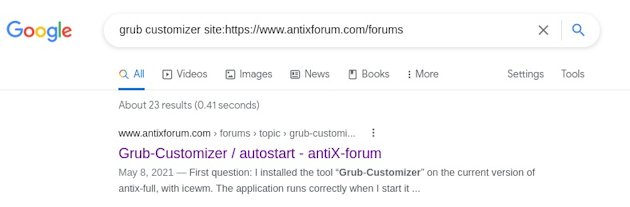
For example if I was having problems with grub customizer not working, I would have it search for grub customizer. You might get a number of screens as a result, but if too many search again with more words or page through and see if you can find an answer to your problem.
Another way to search the forum is to use a browser search by typing in:
grub customizer site:http://www.antixforum.com/forumsAttachments:
Here is the link to SEARCH THE FORUM >> http://www.antixforum.com/search-forums
December 25, 2021 at 8:27 pm #73654 schproodleMember
access_cloud-antiX-v2.sh installed with no problem and it worked to access google drive. I may have made a clumsy attempt to turn it off – unmounted the google drive. Now it no longer works. Goes through all the steps and the drive does not appear in rox.
EeePC, ASUSTek 1000HE - Atom N280, 1667 MHz, 32 bit - RAM 992.2 MiB
Kernel: 4.9.0-279-antix.1-486-smp i686 bits: 32 compiler: gcc v: 10.2.1
Desktop: IceWM 2.9.3 & zzzfm
Distro: antiX-21_386-full Grup Yorum 31 October 2021December 27, 2021 at 4:15 pm #73851Memberaccess_cloud-antiX-v2.sh installed with no problem and it worked to access google drive. I may have made a clumsy attempt to turn it off – unmounted the google drive. Now it no longer works. Goes through all the steps and the drive does not appear in rox.
My advice would be to reboot your computer and try to use “access cloud” again. If it fails to start, please create a new thread about that problem and I’ll try to help you out…
P.
-
AuthorPosts
- You must be logged in to reply to this topic.