
Forum › Forums › Official Releases › antiX-26 “Stephen Kapos” › apt update error after kernel update
- This topic has 53 replies, 8 voices, and was last updated Jul 14-1:40 pm by Brian Masinick.
-
AuthorPosts
-
June 2, 2026 at 11:35 am #205851
anti-apXos
MemberOne thing I notice running now live with no persistence is that I have the full setup I had with persistence, including the new kernel. Perhaps this is obvious for you, but I thought I was going to see the setup of the last time I remastered before the kernel update.
According to your first post in this thread, the last time you remastered was after installing the new kernel.
I updated yesterday the kernel in my Live antiX 26 64-bit stick to version 6.6.139 following the steps I found recommended in another post:
1- Installed the new kernel using Synaptics
2- Remastered
3- Ran Live-USB Kernel updater
4- RebootedNot sure what I did wrong, but looks like my Live-USB stick is ruined, at least its persistence setup. So, unless you see any “emergency rescue” alternative, I think I will have to start over setting up a fresh version of the Live-USB.
I’d try just deleting the rootfs persistence file and creating a new one at boot first before starting over altogether. I’d also suggest running fsck on the USB drive.
"--"
June 2, 2026 at 11:55 am #205852ElCuarteador
MemberHi @Xunzi_23,
Regarding your point:
No room to update, that means you are out of ram, 1GB is tight even for antiX..
Please try and find a Ram module to fit, you can upgrade to 2GB, the RAM Module
is accessible after opening the bottom hatch cover. It does make a big difference.I was thinking about that months ago, and searched the internet for additional RAM for this Asus EeePC 1011PX. I found something that looked good, but I’m not sure if buying a part so old without being sure it’s truly compatible with my notebook is a good idea. I’m a pretty basic user of computers and when it comes to electronic hardware I’m even less than that. So, my impression is that I can be wasting money buying in these conditions…
On the other hand, I opened a little cover at the bottom of notebook specifically for access to the RAM module, and what I saw didn´t seem to be easy to remove and replace by myself (something to unplug / plug). So, even when I get a compatible RAM module, I think it may need to be installed by someone with better knowledge of old computers like this one.
It would be great upgrading it to more RAM, but not obvious to me at all…
Thanks anyway for your comments!
June 2, 2026 at 12:58 pm #205859MemberHi anti-apXos,
I would be happy trying what you suggest and of course report back the results:
I’d try just deleting the rootfs persistence file and creating a new one at boot first before starting over altogether
Could you please provide a bit more detail about how would you do this? If I understand well, it would be like:
1- Boot with no persistence
2- Delete rootfs: can I use a root window of the File Manager to do this? Or should I delete it from the terminal? Or doesn’t matter as fas as I delete it?
3- Should I delete only rootfs or more persistence files, like homefs, linuxfs? Please note that the errors I see booting with persistence do not mention rootfs but “overlayfs”, and I don’t see such file within /live/boot-dev/antiX (so I it’s created when booting and deleted when rebooting?). Would you try deleting rootfs only, try rebooting, delete something else if it doesn´t work…?
4- Create a new rootfs file: how do I do this? Just rebooting with static persistence? Will that alone re-create the missing file or should I do something else before rebooting?I’d also suggest running fsck on the USB drive.
I can also try that, but again more details will be appreciated, as I have never heard about fsck. Is this a diagnostic tool only or one for repairing the USB drive too? Should I run a command at the terminal for this? Could you please suggest what command would you use?
Thanks for your help too!
June 2, 2026 at 2:51 pm #205864MemberCould you please provide a bit more detail about how would you do this? If I understand well, it would be like:
1- Boot with no persistence
2- Delete rootfs: can I use a root window of the File Manager to do this? Or should I delete it from the terminal? Or doesn’t matter as fas as I delete it?
3- Should I delete only rootfs or more persistence files, like homefs, linuxfs? Please note that the errors I see booting with persistence do not mention rootfs but “overlayfs”, and I don’t see such file within /live/boot-dev/antiX (so I it’s created when booting and deleted when rebooting?). Would you try deleting rootfs only, try rebooting, delete something else if it doesn´t work…?
4- Create a new rootfs file: how do I do this? Just rebooting with static persistence? Will that alone re-create the missing file or should I do something else before rebooting?1- yes, or do this in another OS if you have one available.
2- You can delete it any way. Or even just move/rename it if you want to keep the old one as a backup.
3- I would start with just deleting the rootfs since that seems to be the most likely issue. You could move on to also deleting/renaming your homefs if you still get the same error. Keep in mind that you will lose everything that was in your home directory if you create a new homefs. If you rename the old one instead of deleting, it might be possible to recover files out of it depending on what the problem is.
Don’t bother with the linuxfs since that can’t be automatically regenerated. It seems to be working fine anyway since you can boot without persistence.
There is no file named overlayfs. Overlayfs is type of layered filesystem that’s being used to mount the linuxfs, rootfs, and homefs files as if they were a single filesystem.
4- Just boot again with persistence enabled and you’ll get an interactive prompt during boot that allows you to create new persistence files. Choose the second option to make a custom rootfs larger than 300MB.
I can also try that, but again more details will be appreciated, as I have never heard about fsck. Is this a diagnostic tool only or one for repairing the USB drive too? Should I run a command at the terminal for this? Could you please suggest what command would you use?
The command for fsck is ‘fsck’. It stands for FileSystemChecK. If you’re more familiar with Windows, it’s similar the CHKDSK command. Linux fsck is actually some kind of wrapper that detects the filesystem type and runs the appropriate checker for what it detects.
I’m not sure there’s any way to run fsck on the antix live boot device that you’re booted from, so I guess this would have to be done from another OS install or another live USB.
You could also try running fsck on the rootfs or homefs files as well. They’re just ext4 filesystems, but in a file rather than a block device.
sudo fsck /live/boot-dev/antiX/rootfsHowever, I don’t think that will help in your case. At least, the error I’ve gotten in the past from rootfs filesystem corruption that can be fixed with fsck is different from what you posted.
"--"
June 3, 2026 at 10:46 am #205902MemberWhen you run the ISO Snapshot, you may want to adjust the snapshot folder to save on the hard drive. Just to make sure there is enough room. There is an option on the iso-snapshot opening screen.
I have a problem running ISO Snapshot: when I try to change the snapshop location (as suggested above), what I see is only the USB drive from which i booted live with no persistence. I don´t have enough room in it for the ISO file, so I need to change to the hard drive (plenty or room there) or another bigger USB drive, but I don´t see any of them in the window the tool opens for selecting the snapshot location. I do see them in a File Manager window though.
Should I do something before opening the ISO Snapshot tool to make other drives available?
Thanks!
June 3, 2026 at 10:52 am #205904 christopheModerator
Mount the internal drive in the file manager. (You may need root privileges.) I think that will then allow you to use it.
antiX on everything, since 2017
June 3, 2026 at 11:44 am #205910MemberThank you @christophe for replying so quickly!
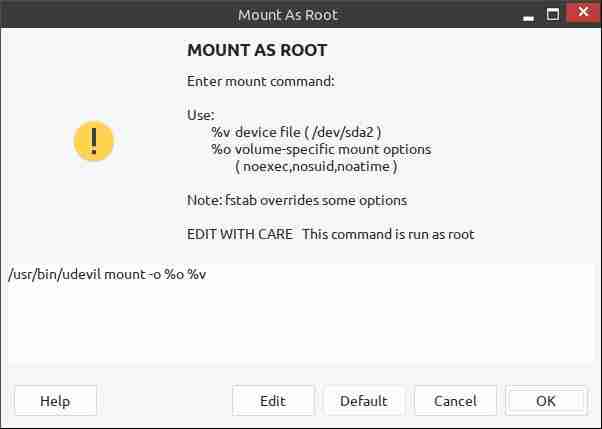
I tried the following: within File Manager, I right-clicked on the hard drive and chose Root and then Mount. A window popped up reading “MOUNT AS ROOT” with additional text looking like a command I should write or add to what seems to be a pre-set portion of a command (please see the attached screenshot). If I click on continue leaving everything as is, the pop up window diasppears, but I see no change to anything. I tried after that to open ISO Snapshot to check if I could see the hard drive in the snapshot location window, but I can´t see it.
Frankly, I have no idea what I’m doing, so probably it’s all wrong… Sorry but I probably need more help with mounting the hard drive as root… As you can see, I’m a VERY basic antiX/Linux user…
Attachments:
June 3, 2026 at 1:50 pm #205922christopheModeratorAre you using zzzfm (the default file manager)?
I was thinking you would open the zzzfm window, and under the ‘file’ menu, select ‘Root Window’.
After you enter your password, a root window opens. click ‘Devices – Settings – Show – Internal Drives’, then select your appropriate internal drive to mount.(Sorry for the confusion.)
antiX on everything, since 2017
June 3, 2026 at 3:11 pm #205926MemberOK, I haven’t thought about that alternative, sorry…
I did that and mounted sda2 (hard drive), and then I checked its Properties, I see it’s mounted (please see the first screenshot). Then I opened ISO Snapshot and when I try to change the snapshot location, I only see the USB drive I used to boot antiX26, nothing else (see the 2nd snapshot below).
Unless there is another way of making more drives available to the ISO Snapshot tool, it seems I will not be able to create an ISO snapshot of my Live system. From what I can see now, I wouldn’t have been able to do it before either, because my USB drive was always too small for that.
Thanks again for your patience, @christophe!
- This reply was modified 3 months, 3 weeks ago by ElCuarteador.
June 3, 2026 at 3:54 pm #205931Robin
Memberwhen I try to change the snapshot location, I only see the USB drive I used to boot antiX26, nothing else
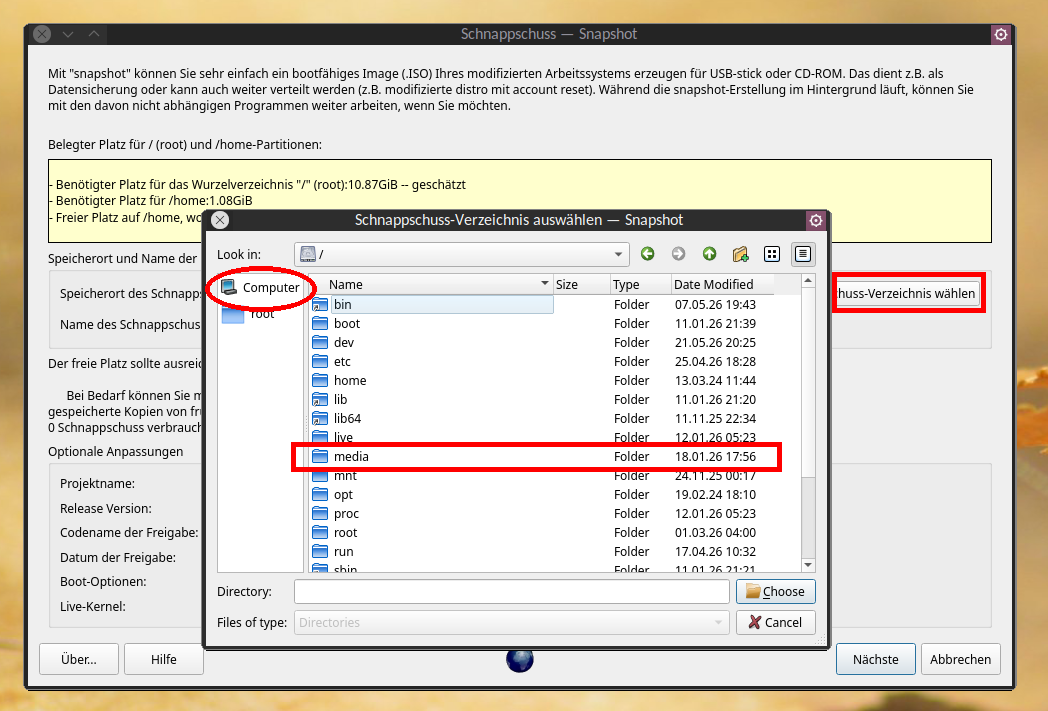
Click on the word “Computer” in the left column. Double click the slash which should appear on the right side now. Then double click the folder “media”, also on the right side among others, and select therein the mountpoint of a drive and finally the target directory you prefer before clicking OK.
- This reply was modified 3 months, 3 weeks ago by Robin. Reason: precisified instructions
- This reply was modified 3 months, 3 weeks ago by Robin.
Windows is like a submarine. Open a window and serious problems will start.
June 3, 2026 at 4:09 pm #205932christopheModeratorClick on the word “Computer” in the left column. Then click the folder “media” which should appear on the right side among others, and select therein the drive and finally the target directory you prefer before clicking OK.
(In the ISO Snapshot window.) Does that open up hdd folders to save into?
antiX on everything, since 2017
June 3, 2026 at 4:34 pm #205934 Brian MasinickModerator
In my instance of zzzFM, when I open it, I see my own home directory.
In order to access any file system, I clicked on the File menu, and found a selection called Root Terminal and another one called Root Window. I clicked on the Root Window, provided my credentials, and then another Root Window opened and I had access to any directory anywhere on my system. In my case, that includes other partitions containing other Linux instances; I have two antiX versions, an MX Linux version, a Slackware version and an Endeavour OS version; the information on each file system is accessible to me.
I rarely use the file manager; I’m a command line guy, but I have no problem figuring out how to use either one, and that is one way to do it.
--
Brian Masinick
Alternate "Search B":
This search pageJune 3, 2026 at 5:57 pm #205943Member(In the ISO Snapshot window.) Does that open up hdd folders to save into?
Yes. This opens the root directory of your system, represented by a single slash. Double click the slash, and you’ll see the root folder content, including the media folder. In this media folder you should find all what you need for further navigation. See screenshot. (Make sure you have mounted the respective partition filesystem you select as target with write access for your user)
Attachments:
Windows is like a submarine. Open a window and serious problems will start.
June 3, 2026 at 6:13 pm #205949christopheModeratorI’m glad it will work for him. And your pictures should help if he has any doubts. 🙂
- This reply was modified 3 months, 3 weeks ago by christophe.
- This reply was modified 3 months, 3 weeks ago by christophe.
antiX on everything, since 2017
June 3, 2026 at 6:38 pm #205955MemberI was asking ElCuarteador
No problem. That was not clear to me from your wording.
But I wondered already how you all of the sudden could have forgotten how to navigate from /
🙂 🙂 🙂
Btw, I’m not completely convinced whether the the target drive actually must be mounted with write access for the user like I had suggested, or whether write access for root is enough, since this snapshot tool asks you for your sudo password when started from Control Centre. So I conclude, the snapshot will be written by root anyway. But what should be clear to ElCuarteador is, that the drive (filesystem on a partition) must not be mounted in readonly mode, which is pretty common for internal drives on antiX live. Use mount=all boot parameter to overcome this trap easily.Windows is like a submarine. Open a window and serious problems will start.
-
AuthorPosts


- You must be logged in to reply to this topic.